What Happens Automatically in Podio
Podio doesn't just store your project information - it actively helps manage your workflow with automations (powered by GlobiFlow).
Here's what the system does for you automatically:
1. Creating Stages When You Start a New Project
What triggers it:
- You create a new Project in the Projects app
What happens automatically:
-
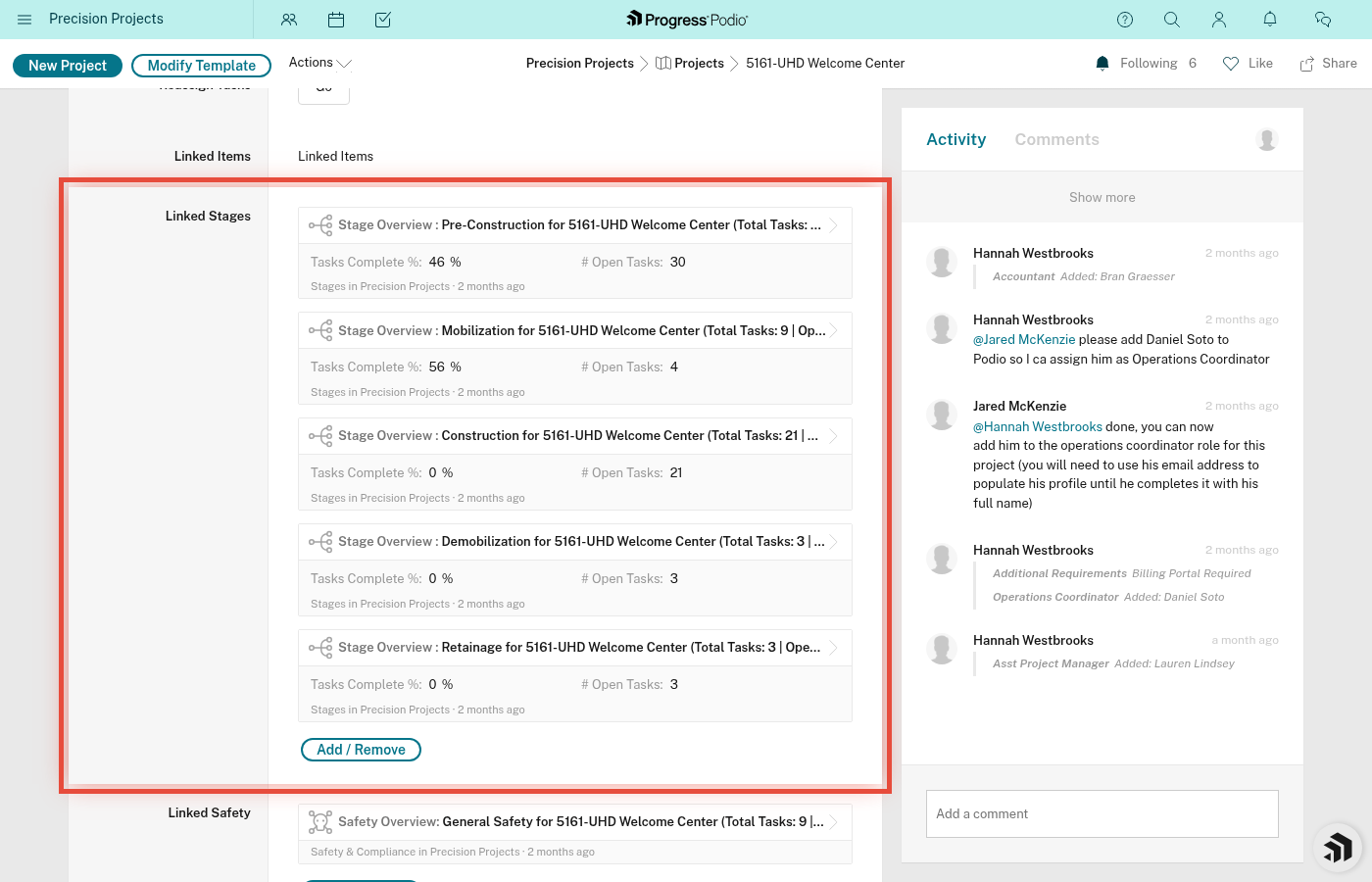
The system creates 5 Stages linked to your project:
- Pre-Construction
- Mobilization
- Construction
- Demobilization
- Retainage
-
The system also creates a Safety & Compliance record linked to your project
Why this matters: You don't have to manually set up the structure for every job. The framework is ready to go as soon as you create the project.
Time saved: ~5-10 minutes per project
2. Creating Tasks When You Activate a Stage (Just-in-Time)
What triggers it:
- You change Current Stage Status to "[Stage Name] Active" (e.g., "Pre-Construction Active")
What happens automatically:
- The system looks up the Task Templates for that stage and your project's Division (Concrete, Drywall, or Other)
- All tasks for all stages are created at project creation (could be 100+ tasks total!)
- It creates subtasks and links them to their parent tasks
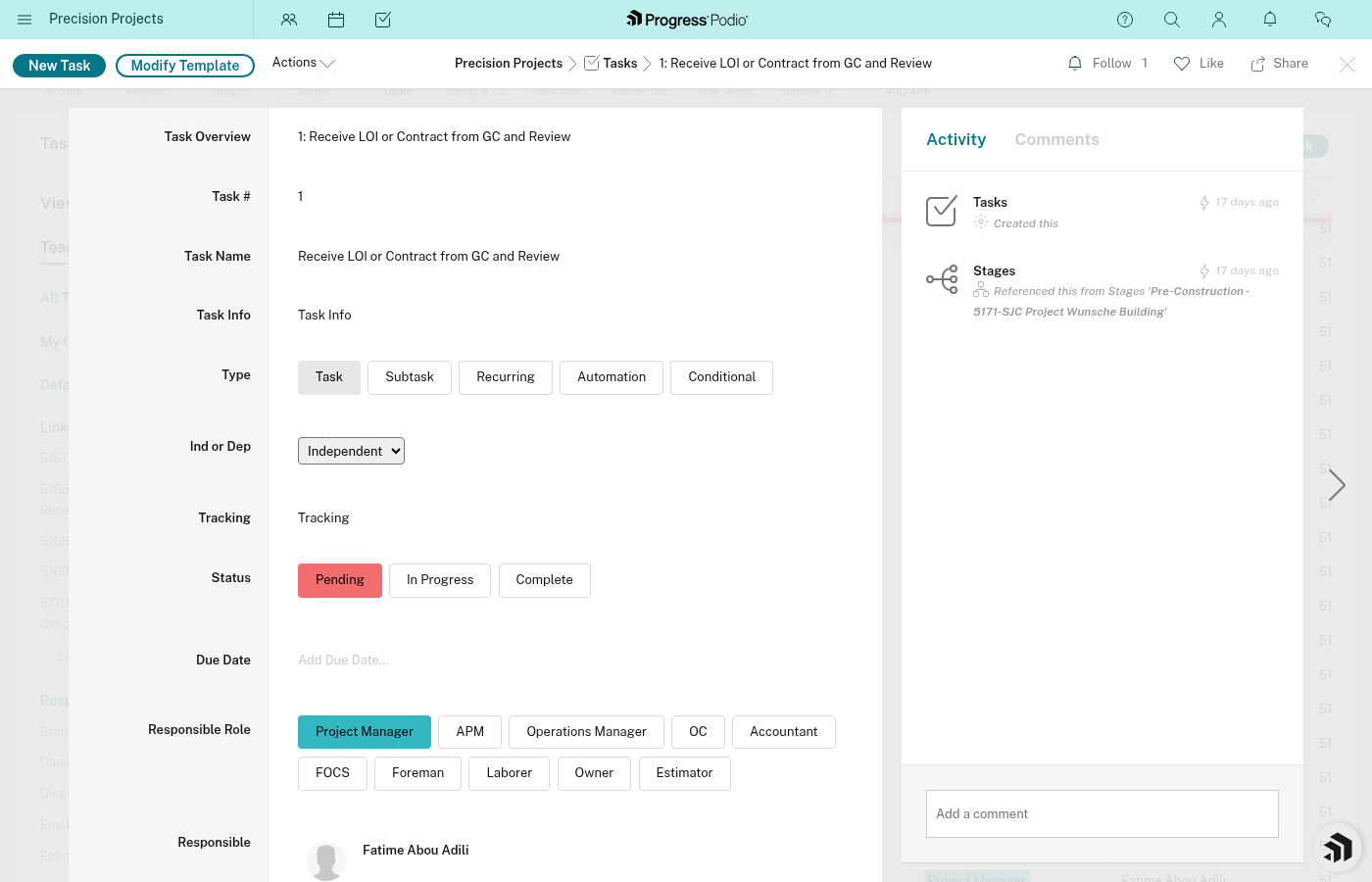
- It sets each task to the correct status (Independent tasks → In Progress, Dependent tasks → Pending)
- It assigns tasks based on roles (PM, OC, FOCS, Foreman) from your Project fields
- It sets the stage's Automation Status to track progress
Why this matters: You don't see 200+ tasks all at once on day 1. Tasks appear only when you need them, keeping your task list manageable.
Time saved: ~30-60 minutes of manual task creation per stage
Wait time: Allow 2-3 minutes for all tasks to populate after changing stage status.
See task-population.md for more details.
3. Linking Task Dependencies
What triggers it:
- Right after tasks are created (when Automation Status = "2 - Creation Complete")
What happens automatically:
- The system looks at each task's Dependent Task # field from the template
- It finds the matching prerequisite task(s)
- It creates Dependencies links between tasks
- It sets the stage's Automation Status to "3 - Linking Complete"
Why this matters: Task chains are set up correctly without you having to manually connect 50+ dependency relationships.
Example chain that gets auto-linked:
- Task 12: Prepare SSSP → Task 13: Submit SSSP → Task 14: Receive SSSP Approval → Task 15: Post SSSP on site
See dependencies.md for how dependencies work.
4. Unlocking Dependent Tasks
What triggers it:
- You mark a task Status = Complete
What happens automatically:
- The system finds all tasks that have a Dependency on the completed task
- It changes those dependent tasks from Status = Pending to Status = In Progress
- It sends a notification to the person responsible for each newly unlocked task
Why this matters: Workflows keep moving forward without manual coordination. When you finish your part, the next person automatically knows it's their turn.
Time saved: Countless back-and-forth messages and status check meetings
Example:
- You complete "Submit permit application"
- Automatically: "Receive permit approval" changes to In Progress
- Automatically: The PM gets notified it's ready for them
See dependencies.md for full details.
5. Duplicating Recurring Tasks
What triggers it:
- Scheduled weekly automation
- Runs for any active stage that contains recurring tasks — not limited to Construction
What happens automatically:
- The system finds all tasks with Type = Recurring in active stages
- It duplicates each recurring task
- The old (completed) task stays for record-keeping
- A fresh copy appears with the same Responsible person and details
Why this matters: Weekly or daily tasks (safety meetings, daily reports, equipment checks) automatically regenerate. You don't have to remember to create them.
Example recurring tasks:
- Weekly safety meeting
- Daily field report
- Weekly tool/equipment inspection
The regeneration runs on a weekly cadence.
6. Updating Progress Metrics
What triggers it:
- Tasks are completed
- Tasks are created
What happens automatically:
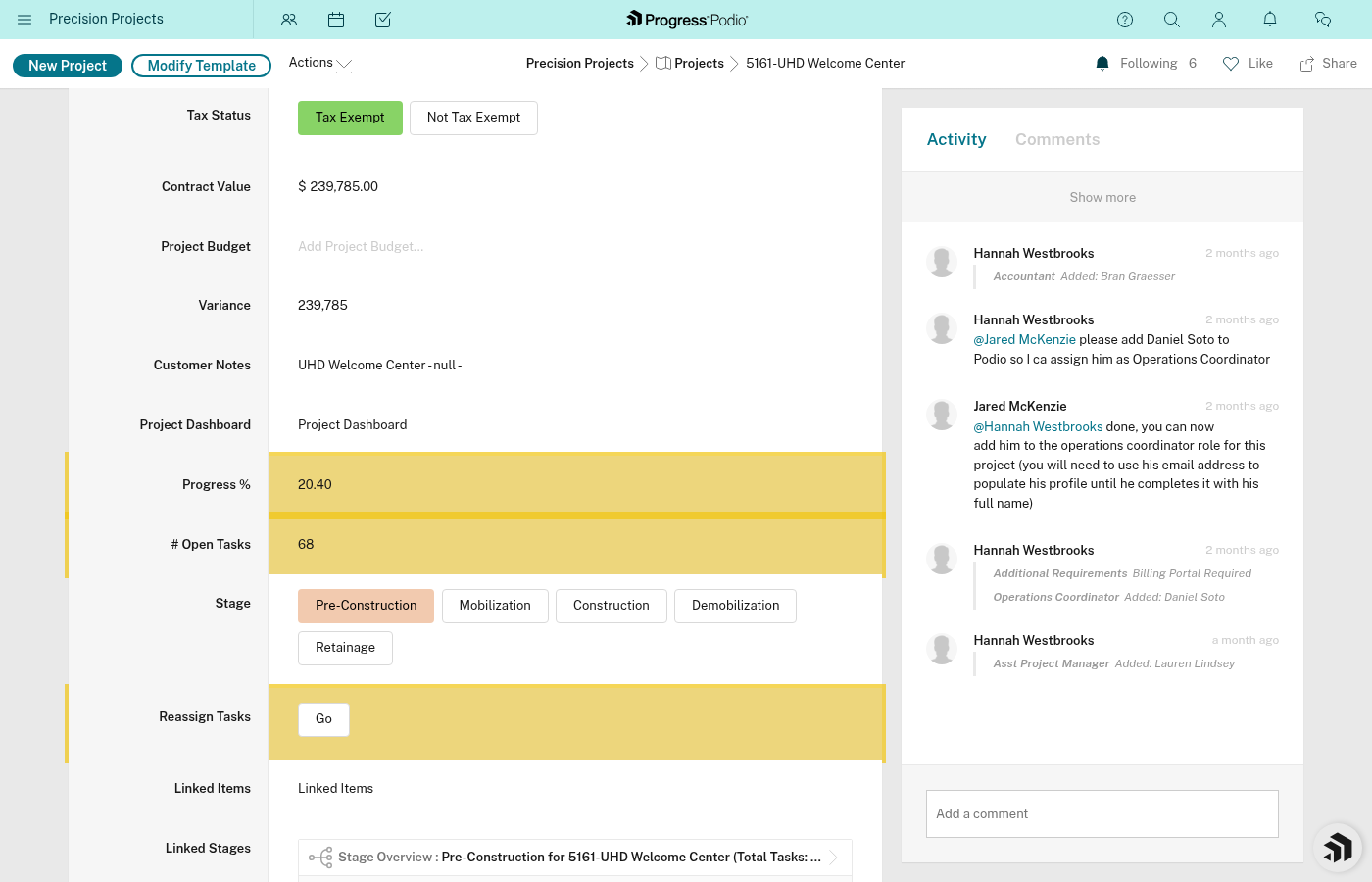
- Tasks Complete % updates on each Stage (based on how many tasks are Complete vs Total)
- Open Issues count updates on each Stage (count of incomplete tasks)
- Overall Progress updates on the Project (average of all stage completion %)
- Open Tasks Count updates on the Project (total incomplete tasks across all stages)
Why this matters: You always have real-time visibility into job progress without manual reporting or calculations.
What Does NOT Happen Automatically
To avoid surprises, here's what you still have to do manually:
❌ Advancing to the next stage - you have to change Current Stage Status yourself ❌ Completing tasks - the system won't mark tasks done for you (except recurring tasks duplicating) ❌ Assigning tasks to specific people - templates assign by role, but you might need to adjust ❌ Creating one-off custom tasks - only templated tasks are auto-created ❌ Editing task details - due dates, notes, attachments are your responsibility ❌ Following up on blocked tasks - if a Pending task is stuck too long, you need to investigate
Summary Table
| Automation | Trigger | What It Does | Time Saved |
|---|---|---|---|
| Stage Creation | New project created | Creates 5 stages + Safety record | 5-10 min |
| Task Population | Stage activated | Creates 40+ tasks from templates | 30-60 min |
| Dependency Linking | Tasks created | Links prerequisite relationships | 15-30 min |
| Task Unlocking | Task completed | Advances dependent tasks to In Progress | Constant coordination |
| Recurring Tasks | Weekly schedule | Duplicates recurring tasks | Ongoing reminders |
| Progress Metrics | Tasks change status | Updates completion % and counts | Real-time reporting |
Total time saved per project: Several hours of setup + ongoing coordination overhead
How to Know Automations Ran Successfully
For Stage/Task Creation
-
Check the Automation Status field on the Stage:
- "1 - Pending Creation" = automation queued
- "2 - Creation Complete" = tasks created
- "3 - Linking Complete" = dependencies linked, all done ✅
-
Look at the Task Overview for the stage - you should see tasks appear within 2-3 minutes
For Task Unlocking
- Watch the dependent task's Status field - it should change from Pending (red) to In Progress (yellow) within seconds of completing the prerequisite
- The responsible person should receive a notification
If Something Seems Wrong
See troubleshooting-automations.md
Related:
- task-population.md - Deep dive on automatic task creation
- troubleshooting-automations.md - What to do when automations fail
- dependencies.md - How task dependencies work
- Billing Automation - The monthly billing cycle automation (separate from task/stage automations)